Looking for the best Grand Theft Auto 5 Discord Bot? Link your The100.io Grand Theft Auto 5 group and view, join or leave Grand Theft Auto 5 games, create games, manage Grand Theft Auto 5 lfg sessions, and more.
Also, don't forget to join our official Discord Server!
How To Get The Grand Theft Auto 5 Discord Bot
Open your group's settings page and click Add The100.io Discord Bot. Discord will ask which server to add it to and which channel your games should post in — that single step sets up both the bot and the channel webhook. You'll need Manage Server permission in Discord, and you'll need to scroll down inside Discord's popup to reach its Authorize button.
Setting Up The Discord Bot
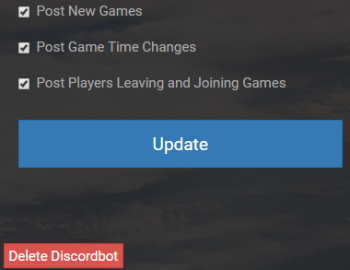
Once the bot is in, your group's settings page lists every Discord server it posts to, and lets you send a test post to check a connection. Bot Settings & Command List is where you choose what gets posted — new games, time changes, players joining and leaving, and more. Note: removing the bot on the100 stops the posts, but to fully remove it you'll also need to kick the bot from your Discord server and delete the webhook there.
Time Zones
When the bot posts, it posts based off of the time zone set on your groups settings on the100.io. When you, the user, create a game with the /create or /c command, it uses the time zone from your user profile on the100.io and then will convert to the groups time zone when it posts in discord.
Available Bot Commands
The bot uses Discord slash commands. Just type / in your server and
Discord shows the list with inline help — no prefixes to remember.
Getting Started
/link
DMs you a link to connect your Discord account to The100.io. Run this once so the bot can create and join sessions as you. If you ever hit issues, re-linking often fixes them.
/the100status
Confirms the bot is online and that your group's webhook is connected.
Sessions
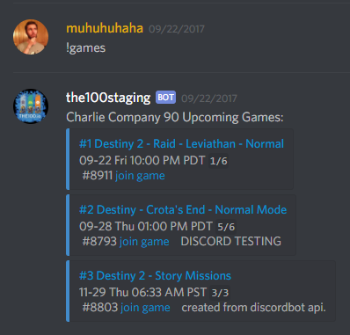
/games
Lists your group's upcoming sessions.
/c <what and when>
The fastest way to create a session — describe it in plain language and the bot figures out the time.
Examples:
/c Grand Theft Auto 5 tonight at 8pm
/c raid tomorrow at 9pm
/c among us in 1 hour
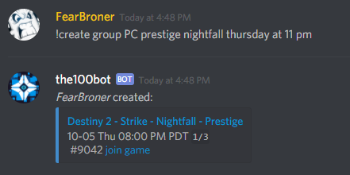
/create
Creates a session with a guided, step-by-step flow (game, activity, time, and options like platform or "beginners welcome"). It starts from the default game in your profile, and you can pick a different one along the way.
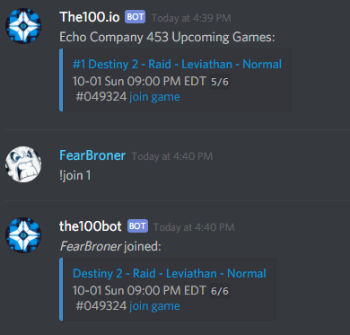
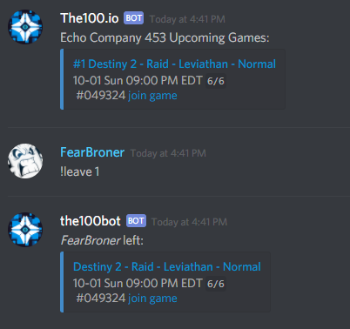
/join and /leave
Join or leave a session by its ID. Easier still: every session the bot posts has live Join and Leave buttons — just tap them and the roster updates instantly.
/delete
Deletes a session by its ID. Only the session creator and group mods can delete a session.
Help
/help
Shows the full command list and quick examples.
Allowed Time Formats:
thursdaynovember
summer
friday 13:00
mon 2:35
4pm
10 to 8
10 past 2
half past 2
6 in the morning
friday 1pm
sat 7 in the evening
next week at 2:00
this tuesday
next month
this morning
yesterday at 4:00
next friday at 20:00
tomorrow at 6:45pm
afternoon tomorrow
5 months from now
7 days from now
1 week hence
in 3 hours
7 hours before tomorrow at noon
3rd wednesday in november
3rd month next year
3rd thursday this september
4th day last week
fourteenth of june 2019 at eleven o'clock in the evening
January 5
22nd of june
5th may 2017
February twenty first
dec 25
may 27th
October 2006
oct 06
jan 3 2010
february 14, 2004
february 14th, 2004
3 jan 2000
17 april 85
5/27/2018
27/5/2017
05/06
2018-05-27
Friday
5
4:00
17:00
0800
January 5 at 7pm
22nd of june at 8am
2018-05-27 05:00:00
03/01/2018 07:25:09.234567
2018-08-01T19:30:00.345-07:00
2018-08-01T19:30:00.34-07:00

Find Your Group Now
Download our free app and we'll have you matched in a group in seconds.